Hello fellow forumphiliacs. As a fan (very much so) of one-piece swimsuits I was dissappointed when I realized that there are not that many stories around this particular kink, and there are even less stories with this particular kink coupled with another of my 'naughty treasures' - mind control. So, for a couple of months now I've been writing erotic mind-control, swimsuit stories. Here are the links to them.
I hope, there won't be too many new items like this in the blog, because I am really fond of this type of bondage and I ordered one, which arrived today. It looks nice, the material is some sort PU, very soft on the outside, rough but still soft on the inside, coming pretty close to real leather, except for the smell of course. The crotch is clearly designed for women, I will need to wear something underneath. The zipper looks strong and moves well, good!
My first quick attempt to put it on, was not successful. It is very difficult, to get the shoulder parts on, and so I attached strings to the rings on the collar. It helped a little bit, but then one of the rings went off. Then I had to leave for a while and now I am back. What follows is sort of a live report, meaning, that I am saving now, then try something, edit the post and save, and so on. So come back for more until you read my final conclusion.
By the way, there was no real communication with the seller, I told him some measurements and asked him to make the suit accordingly. I indicated arm length, torso length (both from top of the shoulder) and waist size. I think, I should have included the info that I am a man and I should have mentioned my shoulder width, but it looks like the shoulder part will fit. Despatch was two days after my payment (paypal, instant) and I got it after another two days, so that was fine.
22:35
Ok, this thing is a bit tight on the shoulders, but the main problem is to shift it up properly. The collar sits on my lower neck, impossible to close the zipper this way. I am going to punch a ring into the back of the collar, then attach a string to pull it up. So far, I could pull the zipper up 3/4 of the length. I might be able to get it higher, but instead, the zipper might break, so I won't try, until I got this glove into the right position. But the shoulders were covered and I had to wiggle a bit in order to get out again.
It might be helpful to wear a lycra top underneath, to reduce the friction. This was a little bit exhausting, but I am sure, I will give it another try later tonight.
23:32
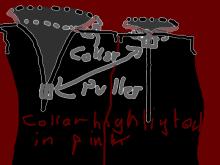
Puh, sweating! I got the zipper closed until right below the collar. The collar is bent out and I could do nothing about it, although it is definitely wide enough. The method: I attached a string to both sides of the collar, one side to the ring, the other side to the hole, that exists since the other ring went off. I then attached this string to a hook on the wall, later on, I managed to grip it with my teeth, and that helped a lot. Between that pulling, I used my teeth to pull the string with the zipper up slowly, sometimes tooth by tooth. Finally, I managed to pull this zipper string through the collar string, to make sure, that the collar string would not get into the zipper, then pulled the zipper string over the handle of a drawer, bent down and pulled the string further by foot. All the time, I had to pull tight the crotch part of the leotard, it is waayyyyyyyy tooooooo looooong! It was fairly easy through the material of the arm bag.
Not sure, if the following image will help:
03:08 (obviously the night)
A lycra leotard with long sleeves definitely makes things easier. The suit goes on like that, except for the collar, which still is flat to the sides. I think, the suit needs to be lifted on the back, but I leave that for tomorrow (ring on the collar backside, string etc.). For some reason, the "real feeling" isn't there yet, I suppose, it is triggered by the zipper going up completely. Apart from that, I am looking for ways to remove all strings after donning the suit successfully - and get the zipper string on again, once I want to get free.
Enough for this night, more later.
PS: This is definitely not "made to measurements", it is way too long. Well, better too long than too short though. I will ask the guy, if he can do better, including slightly wider shoulders - but that is for much later, my budget is exhausted for the moment.
I'm considering buying a zentai suit online, but have no idea where to start looking. I've found many websites, but a lot of them don't look legit, and with reused picture everywhere it's difficult to know if the quality is decent before purchase.
So if you have any knowledge of a site that is particularly good, please let me know 😁
I'd rather NOT use ebay, since there are added complications that come with it.
Before some people run to download it, please remember that this release is a beta, so it has been published just to get feedback from the users to improve the final release.
When finished, this program will be part of a bigger program (there were going to be 3 differents programs, but I have joined 2 of them in this release), so any feedback or idea will be pretty apreciatted.
Do not try this program in real sessions if you are not using a laptop, a computer connected to an UPS system or if you haven't at least one backup release method.
This is the first public beta release of the Selfbondage Blowjob Trainer.
Selfbondage Blowjob Trainer is a program to use on selfbondage sessions that forces you to suck a dildo to get free (or to do not get teased).
To use it you're going to need a webcam, a laptop, a dildo and a computer running windows 2000 or later.
At the beggining I was going to release 3 diferents programs., but last week I have joined two of them in this release, so you can perform 2 different sessions with this one:
Sucking the dildo and being collared to a fix point, so you'll not be able to take the dildo out of your mouth.
Or...
Sucking the dildo without being collared to a fix point, but the computer will check that you do not take it from your mouth (I call this mode "Virtual Restrain").
The last program will take the image from 2 webcams, so you'll have to cover a certain part of the dildo with your mouth and also suck to lift a paper ball or a little ballon: .
The program doesn't need to be installed to work, and it has been only tested on a Windows 7 machine, so any feedback about other OS will be welcomed.
There are two versions of the beta released.
One requires Silverlight to be installed on the computer and the other one not.
In order to work the Silverlight version must be executed having in the same folder than the main exe a folder named webcam (where the webcam stuff is located).
If Silverlight is no installed on your computer the program will not work
The non Silverlight version is and stand alone exe file. (so there's no need of having any webcam folder or silverlight installed (but it may happen that the program doesn't recognizes your webcam)
The minimum working resolution is 1024x720.
This program blocks any forced reboot, and checks the battery level of the laptop. When the battery goes under a 15% the program will run the desired release method.
As this program checks that you're doing the blowjob depending on if you cover an area of a certain color with your mouth is very important that you use it with very good light conditions.
The best way it would be to have an artificial light source next to the dildo and the webcam pointing to the area of the dildo that the program will look on. The best it would be something like the picture below:
When you open the program you'll get a black square with two red rectangles on it: .
The black square is the webcam viewing area. On the top left of this area there is a button:
Clicking on it, Silverlight will ask you for permission to use the default video device of the system. Just click yes in the prompt window and you should have the stream of your webcam on the screen.
The two red rectangles are the searching areas that the program will use to check that you're doing the blowjob.
You can move and resize the searching areas with the arrows buttons: If you want to move the rectangles faster use Ctrl + the directional arrows on the keyboard If you want to resize the rectangles faster use Alt + the directional arrows on the keyboard
The idea is that you put the rectangles pointing to the dildo and the area that you want to cover when doing the blowjob.
(Is a good idea to do the rectangles bigger than the area that you want to suck, because the dildo will no be always in the same exactly position).
When you have the rectangles on the desired position you'll have to choose in what direction you're going to do the blowjob using this buttons:
This is extremely important because the computer will force you to cover one of the rectangles and to go back showing the desired color on the other rectangle, so if you input wrong the direction you'll be stuck!
When you have choosed the direction is time to see if the program recognizes the color of the dildo (or the color that you'll ave to hide from the cam when doing the blowjob).
The controls are the same than the ones used on the Selfbondage Color Finder:
If you click on: you'll get a color picker window:
The best way of using that window is just drag the tool marked with a red circle on the image above and drop it over the dildo, so you'll get the exact match of the desired color. While you're draging the tool you'll see a zoom of the image to get the best result.
When you've selected the desired color press the test button to see if the program recognizes it.
If the program can't recognize the color on any of the rectangles it will tell you to change the tolerance.
.
This value is how many gradients of the exact match of the desired color the program will look also for. So a very high tolerance can return false positives and a low value can make that if the light of the room changes a lot the program will not get the exact macth of the color. As usual make as many test as you can/want. Remember that during the session the dildo will be wet with your saliva, so is a good idea to suck it a little before doing the setup!!!
If the program finds the desired color on both rectangles they will become green:
[SIZE=5]I strongly recommend to do a lot of test, specially sucking the dildo, to check that the program can't find the color when we are sucking the dildo. The best colors are usually blue tones for our pourpose[/FONT]
Next to the tolerance control there are the virtual restrain controls:
This one activates and desactivates the virtual restrain mode.
When the virtual restrain mode is on there wil be drawed on the screen a new searching area:
To configure the virtual padlock and resize and move the searching area you must click on this button: .
Doing it will open the Virtual Restrain configuration window:
In this new window you can see that we have some arrows buttons to let us move and resize the new searching area:
While this window is open you can move the searching area faster use Ctrl + the directional arrows on the keyboard While this window is open you can resize the searching area faster use Alt + the directional arrows on the keyboard
In this beta you can do something like:
This will be prevented to happen on the final release. It can causes mal function on the program if your searching areas collide.
Next to the arrows you have the same controls that you've used before, but this time they work for the virtual restrain seraching area:
When you select the color to look for in the searching area and do a succesful test the area will become green:
[SIZE=5]I strongly recommend to do a lot of test, to check that the program can't find the color when we are sucking the dildo. The best colors are usually blue tones for our pourpose[/FONT]
In the configuration window there are also two punisments setups.
The first one is a time punisment. If you take the dildo ou of your mouth the program will see the color on the searching area of the Virtual Restrain, and session will end (Because I can't trust you now, there's no reason why you're going to keep doing the blowjob, you now can simply put your head between the webcam and the dildo and move it forward and backward).
With this input you say to the program how long you are going to be tied if you break the virtual restrain. (There are other time inputs in the program, the time punishment will be added to any time that you have agregatted till the moment that you break the virtual restrain. For example, if you setup that you want to be tied 2 hours after the blowjob and you break the virtual restrain, you'll be tied these two hours and the time that you input on this input (in that case 5 hours!!)
The second punishment setup is the program that will tease you if you break the virtual restrain:
Here you can choose what program yu o want to tease you and if you want that that program just teases you one time or duirng the whole punishment time (this is depending on the kind of program you are using to tease you).
Default teasing program is any program named pain.exe stored in the same folder than the Selfbondage Blowjob Trainer.
When you have finished setting up the virtual restrain you can turn this feature off and get back to main window of the program using:
or save all the changes and leave the virtual restrain turned on with:
On the right side of the main window you can find all the options that can be configured to setup your selfbondage session.
They are divided by groups. The first one is the one related to how many sucks do you want to do to finish the session:
Here you can also setup if you want to play with random mode (checking this option you'll have to select the max and the minimum number of sucks to do),You can input the time that you think that you're going to need to tie yourself before the computer will ask you to do the blowjob (later, during the countdown that appears to show you how much time left until real session starts you'll have the change to increase or decrease this timer), and finally you can select the speed of the forced blowjob.
Clicking on the test speed button you'll get a progressbar showing you how much time will you have before the program thinks that you've failed doing the blowjob. If you Select "No time", the program will only decrease the total amount of remaining sucks without any timeout (so there will be no fails, no teasing, no time extensions... boring).
(please, notice that is not the same speed when the program has to check the virtual restrain window)
The next group of options is the one that sets how long d'you want to be tied when you finish the blowjob:
Here you can setup if you want to be tied waiting or the release with random time. As above, if you click on the checkbox type the max and the minimum time that you want to wait.
Next group is the teasing group. You can setup a program to tease you everytime that you fail doing the blowjob:
and how many time in minutes will be added to the final countdown everytime that you fail.
Next group is the sound teasing group:
The sound teasing will work during the final countdown, and it works as the sound teasing of my other programs (tired of typing,man).
Notice that you can choose if you want to add time to the final countdown everytime that you fail.
The last group is the most important, is the one of the release method setup:
Here you can setup and test your release method (in fact, you'll not be able to start a session until you've tested the release method).
Under the release method setup group there are the final comands: .
The test button session is not working yet, the contact is just to send me mails giving feedback.
If you press the start session button and you've setup right the searching areas you'll get on your screen a countdown showing you how much time left until the real session starts, so you must use this timer to tie yourself:
When this timer ends the real session will start.
You'll get on your screen a counter with the remaining sucks:
a progressbar showing you how much time lefts before the program says that you've failed doing the blowjob: .
If you take a look at the right of the progress bar you'll see a picture showing you the next movement that you have to do(basically are images that tell you to suck or to go back on the dildo):
Under the counter there is a window that shows how much time are you going to be tied after the blowjob :
and if you have setup that you want to add time to the counter when you fail it will be updated:
Finally, when you have finished doing the blowjobs (remaining sucks <1) you get on screen the final countdown and a progressbar showing graphically how much time left until the release method will be activated:
and if you have setup sound teasing during this coundown you'll get the sound progressbar on screen:
(if you have choosed to be teased with a 10% of sound, this bar will be filled when you make a sound over the 10%!! Fill the bar and you'll be teased).
On final version during this countdown you'll can see on screen the photos that the program has been taking of you during the blowjob.
In this release the images are stored on a folder on the desktop.
Aps, you can exit the program at any moment just pressing the escape button... but it will not run the release method, just closes the program!!! So it can't be used as release method.
PS: I haven't found any good blowjob phrases, so this program doesn't include any sentence... I hope to find some good voices for the final release. Any help with this will be much apreciatted.
Greets from Barcelona
Thanks to iluvplanes, LoKiT and jennifer.bh for reporting errors.
Thought I'd share another time release with you guys. This one uses plain tap water - so no need to freeze it, and can be made out of two soda bottles and a paperclip. I call it the powr: plain ol' water release.
Being somewhat fed up with the hassles of ice releases (not having them available when you'd like, waiting for the water to freeze, ...) inspired me to think of something new.
WARNING: be sure to test it first, that is, before you're tied! If the parts aren't cut correctly to length, if the paperclip hole is at the wrong position or if you do not use enough water, the device will not work.
Having said that, here it is.
Materials needed for the powr:
- Big plastic soda bottle
- Small soda bottle
- Paperclip
How to put the powr together:
1) Cut the big bottle in two parts, making sure that the bottom part is somewhat taller than the upper part
87716057.jpg
2) Pinch a tiny hole in the cap of the big bottle, using for instance a needle
69873036.jpg/
3) Now take the small bottle. Cut it in half so that it will fit into the bottom part of the big bottle. This will be used as a float that will eventually trigger the release.
92910073.jpg
4) Take the paperclip and straighten it out. Attach it to the cap of the small bottle in such a manner that the paperclip can still be tilted up and down. (Use a piece of wire, rope, ...)
20752770.jpg
5) Now make a hole in the wall of the big bottle for the paperclip to fit through. This hole should not be tight.
79485971.jpg
6) There you go! Fill the upper part of the big bottle with plain tap water, slide your keyring over the paperclip, hang the powr to your ceiling, tie yourself up and feel powrless 😉
66227177.jpg
The above one released the keys after 3 hours, but the time can easily be adjusted by varying the size of the hole in the cap. You could make a series of different caps and label them. Put them in the closet, and you'll have them available at any time.
When I get bored or stuck during the coding of a new program I use to update the older ones.
This time the updated is the Selfbondage Motion Detector
Updates:
·There was a flickering on the noize progress bar and in the motion progress bar. Now they work as a charm
·Now you can setup to play random timed session knowing how much time left (in SMD 1.0 in random timed sessions you just get random words on the counter)
·Everytime you get teased (by sound,randomly or movement) the program will take a picture and will save it to a folder in the desktop with a time stamp showing how much time left when you get teased.
·On SMD 1.0 if you choosed an unexisting teasing program SMD 1.0 throwed an error. Now if the teasing program doesn't exist SMD 1.1 simply does not try to open it
·Now my releases will come with a pdf with intructions to use the program, secrity warnings and a llink to boundanna
If you don't mind I'm going to use the original post showing how to use the program (just updating the changes):
In order to run the Selfbondage Motion Detector 1.1 uses a html file that is the one that makes the motion detection and shows the webcam stream on screen. So you'll have to have a folder named webcam in the same folder from where you are running the Selfbondage Motion Detector 1.1.
This html file is a Silverlight Script, so you'll have to have installed on your computer silverllight 4 or above (but is not necessary that you have your computer connected to internet to use it).
As the rest of my programs the Selfbondage Motion Detector blocks forced reboots or shutdowns of Windows and checks the battery level of the computer every second,so if it drows under 20% it automatically runs the desired release method.
The first time that you open the program your screen will look like this:
If you take a look at the grey square on the middle of the screen you'll see a button and a slider:
Pressing this button silverlight will prompt you for permission to acces to your webcam:
When you accept you'll see webcam's image on screen. Everytime you move the blackground of the slider will be filled with red color.
You can adjust the accuracy of the motion detection just moving the slider.
When you've adjusted the motion detection take a look at the right side of the gui. You'll find three groups of inputs to setup your session.
The first one is the one dedicated to setup the duration of the session:
Is like my other programs.
You have to input how long d'you want the session to last here:
and if you want to play with random time you must check this checkbox and type here the minimum desired time
and here the maximum:
so the computer will calculate a number beetwen the max and the min. If you input a min higher than the max the countdown will end as soon as you start the session.
In this new version you can force the program to show or not how much time left in a random timed session. You can setup that option with this checkbox:
As you can't tie yourself whitout moving and the program will tease when you move, is cristal clear that you're going to need sometime to tie yourself before the motion detection starts.
You can input the time that you think that you're going to need to tie yourself here:
(later, during the countdown that appears to show you how much time left until real session starts you'll have the change to increase or decrease this timer).
Inside this group you can also activate or desactivate a 'beep' during the countdown just checking this:
so every second the program will play a beep, like in the countdowns on the movies. CAUTION! It can be no compatible with sound teasing devices!
The next group that you find is the one dedicated to setup the teasing options:
Let's take a look at this group.
The first option that we find let us to tell to the program that when we move it adds x minutes to countdown.
As not everybody have teasing devices I think it would be a good reason to stay quiet while you're waiting for the key.
You can setup the program to do not add any time when motion is detected up to 9 minutes. If you do not want the program to add time to countdown when you move just input a zero in the inputbox (default is 1):
The second option that you find let's you setup how many times you can make a movement before the program teases you and also add the time inputed above to the countdown.
If you want that the computer teases you everytime you move just input zero. If you want that the computer let's you move 5 times before being teased input 5 (at the 6th movement you'll be teased and desired time will be added). Maximun allowed is 9 movements before being teased.
Later I will explain how the program informs to you about how many movements you have made.
Next options let's you choose and test what program do you want to be executed as teasing method when motion is detected:
This time I have added the possibility of running differents programs depending on the fault that you've made. One for moving, another one for not being quiet and a third for the ranmdom teasing. If you want the same teasing for all the cases just choose the same program as teasing method.
On Selfbondage Movement Deterctor there is also a random teasing option:
You can setup the program to tease you randomly. So the Selfbondage Motion Detector will run the teasing program you have choosed on the input above. If you check this option you'll have to choose the % of probabilities of being randomly teased every second. The maximum % is 25% and the minimum allowed is 1%. Everytime that the program teases you due to this option you'll see on the screen a little window like this one:
As explained above you can choose what program do you want to be executed to tease you when random teasing works:
If you do want to use a different teasing program than the one that teases you when you move just select it and test if it works as you expected with the test button.
The last options inside the teasing group are related to sound teasing.
To activate it just mark the checkbox.
Now you can set up the sound level. To do it we need a microphone. Moving the slider we have to set a maximum level of noize threshold, and if we make a noize louder than this level during the session we will be teased:
Until you press the start session button everytime that you make a noize louder that the max allowed level the computer will beep. Use that beep to adjust the noize threshold because when session starts the beep will become an external program running (a "pain.exe" that plays a sound during a minute maybe?)
As the other teasing options you can define what program do you want to be executed when you make noize with that control:
Like the movement teasing you can setup how many minutes d'you want to be added to the countdown when you make any sound louder that the threshold (that's the way you'll learn to remain quiet). You can setup this addition of time with the last option on the teasing group:
Once again if you do not want to add time to countdown just input zero. The max allowed is 9.
After you have setup the teasing options is time to see how are you going to be free. The last group is about the releasing method:
Here you have two options: select an external program to work as release method (opening the cd tray, moving a servomotor,showing images on screen with the combination needed to open a combination padlock,etc...) or just select what cd tray d'you want to be opened to release a key
(putting the laptop on a shell out of reach, you can play with an usb camera and connecting the computer to an external monitor or flat tv).
CD Tray release works putting the key like this:
If you choose that you want to run an external program as release method YOU'LL HAVE TO TEST IT if you want to start the session. Countdown will not start if you haven't tested that your selected release method works as desired.
When battery level goes under 20% the program will run the desired release method (the cd tray or the program that you've chosen)
Once you have setup all the desired options you're ready to go. When you are ready to start click on the start session button:
and you'll get a new window with a countdown and two buttons:
During this countdown teasing methods will not work. This timer is just to letting you tie yourself. We can have the mouse next to us and if we see that we're already tied (just remains one hand, for example), we can force the program to start the session in one minute or if we are taking very long to tie ourselves then we can add 1 minute to the countdown.
When this countdown ends the real session will start.
You'll get on screen a new countdown with a progress bar showing you how many time remains until the release method will be activated:
If you have setup a random time and without knowing how much time left, session the countdown will look like this:
On a normal session without random timer, sound teasing activated and more than zero movements before being teased the screen will look like this:
If you take a look under the video you'll see two progress bars.
The first one have a picture of a microphone and shows the level of noise that you're doing on real time.
It works like this:
So if you have setup a sound threshold of 20% when you make a noise over the 20% the bar will be filled and you'll be teased (and time will be added to the countdown).
This progress bar will only be on screen when you've setup a session with sound teasing. So if you don't you'll not lose screen space.
The second bar is only showed when you have setup more that zero movements before being teased. It will be filled every time that you move:
It will be yellow until you are one movement away of being teased. Then it turns to red:
so on next movement you'll be teased and time will be added to the countdown.
If you have input that you want to be teased after 1 movement, the progress bar will be filled at the 50% a coloured in red at the first movement that you made (and on the second one... you'll be teased).
On next versions I will add the option of decrease this bar if you do not move during some minutes.
Even with both bars on screen, the program will look for motion on the whole webcam image, so, if bars are drawn over a part of your body and you move that part of your body the program will see that movement
Every time you get teased (by sound,randomly or movement) the program will take a picture and will save it to a folder in the desktop with a time stamp showing how much time left when you get teased.
·Now the program works with any resolution equal or higher than 800x600 so it can be used with netbooks
·You'll be informed with a message when session ends due to a low battery level (in previous version the program directly executed the release method).
·When session ends and the webcam stream is back on screen you'll have a label reminding you that to close the program you must press the escape button on the keyboard
·If you choosed an unexisting teasing program SLW 1.0 throwed an error. Now if the teasing program doesn't exist SLW 1.2 simply does not try to open it
·Now my releases will come with a pdf with intructions to use the program, secrity warnings and a llink to boundanna
The program hasn't changed so much from the previous release, but some tests and feedback before releasing it to the main public will be much apreciatted.
This is a updated version of the original post with the instructions to use the program:
The program's name is a tribute to LoKiT so he hasn't been involved at any moment on the developement and any bug or error is totally my fault .
I want to thank him for giving me permission to use the word "LoKit" and for his hard work with the Picture LoKit software.
This program is for those who use combination padlocks on their selfbondage sessions and want to play having their hands locked on his back
The idea is that when a countdown reaches zero a webcam stream will be showed on screen, so you'll can free yourself inputing the combination on the padlock.
So you don't have to take a picture of the combination before start the session.
A session with this program may look like this: .
Like my latest programs there are two versions: the standard one and another that uses the silverlight 4 webcam feature for those with cameras that doesn't worked with my software.
Any of the versions needs to be installed to work and in the case of the Silverlight version you need to have a folder called "webcam" in the same directory from where you're running the LoKiT(able) Webcam.
As I want to make more interesting the waiting for the webcam stream to be showed on screen, the program plays a slideshow during the countdown.
Is really fustrating to be tied with your hands on your back without any possibility of satisfy yourself and been looking at hot images on screen.
I have included some images with the program, but you can add or delete as many images as you want. All the images included with the program have watermarks from their owners or have been included with the permission of their owners or have been found on the net without any copyright.
Anyway, if there is any image that someone want to be removed I'll gently remove it from the package.
The first time you open the program your screen will look like this:
The standard version will prompt you to open the webcam and the Silverlight version has a button at the top left corner:
Pressing it Sliverlight will ask you for permission to show webcam stream on screen:
If you take a look at the right of the screen you'll see all the setup options divided by groups.
The first group is the one that lets us configure how long we do want the session to last. The controls are very similar to the rest of my programs:
You have to input how long d'you want the session to last here:
and if you want to play with random time you must check this checkbox and type here the minimum desired time
and here the maximum:
so the computer will calculate a number beetwen the max and the min. If you input a min higher than the max the countdown will end as soon as you start the session.
A new feature inside this group is .
Checking it the program will show you on screen the remaining time in random mode (otherwise you'll get on screen random characters). The idea is that if you activate random time option you will know how much time did the computer calculated when you're tied.
(I have to include this in the rest of my programs)
You can input the time that you think that you're going to need to tie yourself here:
(later, during the countdown that appears to show you how much time left until real session starts you'll have the change to increase or decrease this timer).
This time is very important because you'll have webcam stream on screen while you're tying yourself, so you'll have to secure your webcam and be sure that when video window comes back it will let you see the combination padlock.
Finally inside this group you can activate or desactivate the beep during the countdown just checking this:
The second group of options is the one related to the slideshow that will be showed on the screen while you're waiting for the webcam video to come back:
Here you can change the folder from where the program will read the images and the delay between the images.
The default folder for the images is a folder called "images" in the same directory that the Selfbondage LoKiT(able) Webcam 1.2
If you do not have this images folder or choose a folder without images during the countdown you'll get a black screen.
The images are showed randomly.
The next group is the one related to teasing options.
Here you can choose if you do want the program to hear though the microphone if you do make any noize and tease you if so.
You can set up the sound level. To do it we need a microphone. Moving the slider we have to set a maximum level of noize threshold, and if we make a noize louder than this level during the session we will be teased:
The program will tease you running an external program.
You can get teasing programs please check [url=http://www.likera.com/forum/mybb/showthread.php?tid=522[/url]
Until you press the start session button everytime that you make a noize louder that the max allowed level the computer will beep. Use that beep to adjust the noize threshold because when session starts the beep will become an external program running (a "pain.exe" that plays a sound during a minute maybe?).
If you do not have any teasing device you can also play with the sound teasing option because the program can also add time to the countdown everytime you make a noize louder than the threadhold.
You can setup how many minutes you want to be added with the last option of the group. If yo do not want time to be added then just input zero minutes (the max allowed is 9 minutes)
The last group of options is one of the most important. Is the one related to security options.
Here you can setup the minimum battery level allowed before ending the session, so when battery goes under your % selected the webcam window will be showed on screen until you press the escape button on the keyboard.
The last option lets us to choose if we do want to run any program when session ends and if so to choose which program and test if it works as we want (it can be, for example, a program that activates a vibrator, or, if you haven't inputed the right combination of the padlock before the countdown ends, a teasing program, so you'll be trying combinations during the whole countdown).
Another option is to use a program that releases a key (like the opening of the cd tray) so you can have two ways of getting free just combining a normal padlock and a combination padlock:
When the battery level is lower than the % you have selected you'll get a warning on screen:
and the program will end the session showing on screen the webcam stream and running the desired external program.
At the bottom of the gui you have the Start button session and a button to close the program with the mouse.
You can exit the program at any time just pressing the Escape button... but it will not show the webcam window on screen So it can't be used as a way to get out of your selfbondage session.
When you have setup all the desired options and you're ready to start tying yourself just press the START SESSION button and a countdown will start showing you how much time lasts before the real session starts:
During this countdown you'll get on screen the webcam image, so make sure that when this image come back when the session ends it will sow the padlock right.
You can decrease or increase the duration of this countdown with the buttons on the gui. This is useful of you're tying yourself faster or slower that you've though. A good way of playing is having a wireless mouse next to you, so you can click on the button while you're tying yourself. Think that during the session the whole screen will be filled with the program, so the mouse will be useless later (I repeat, the only way of finishing the program will b pressing Escape on the keyboard)
When this first countdown ends, the webcam window will dissapear and your screen will look like this:
If you haven't activated the soundteasing you'll get more espace for the slideshow because the bar will not be showed.
The soundbar works like that:
So if you have setup a sound threshold of 20% when you make a noize over the 20% the bar will be filled and you'll be teased (and time will be added to the countdown).
If you have choosed a not random timed session or a random timed session knowing the remaining time you'll will have a timer and a progress bar on the bottom of the screen:
If you set a session with random time and not showing the remaining time you'll have a special timer that just will show random characters.
When the countdown reaches zero the webcam video will be showed on screen again and it will be showed until you get free and you press escape on the keyboard.
The program blocks any forced reboot or shutdown and it has only been tested on Windows 7 x86, so any feedback about other operating system will be welcomed.
Found this surfing the net:
Meanwhile, flamboyant rapper Nicki Minaj -- who is currently touring as Britney's opening act -- hit the stage for a performance on ABC's "Good Morning America" in this ghastly getup, which consisted of a bubblegum-pink vinyl bolero, see-thru skirt, loud leggings, and leopard print boots.
I don't have any idea how to classify that image, but it just screamed, "I need to be here!"





![[Image: session1.jpg]](http://www.boundforum.com/forum/uploads/10608/session1.jpg)
![[Image: session.jpg]](http://www.boundforum.com/forum/uploads/10608/session.jpg)
![[Image: omatic2.png]](http://img638.imageshack.us/img638/9509/omatic2.png) .
.![[Image: verygoodlightconditions.png]](http://img268.imageshack.us/img268/3780/verygoodlightconditions.png)
![[Image: searchingarea.png]](http://img823.imageshack.us/img823/6307/searchingarea.png) .
.![[Image: startcam.png]](http://img8.imageshack.us/img8/6638/startcam.png)
![[Image: arrows1.png]](http://img845.imageshack.us/img845/6167/arrows1.png)
![[Image: dildo.jpg]](http://www.boundforum.com/forum/uploads/10608/dildo.jpg)
![[Image: direction.jpg]](http://www.boundforum.com/forum/uploads/10608/direction.jpg)
![[Image: selectcolor1.png]](http://img705.imageshack.us/img705/4777/selectcolor1.png)
![[Image: selecto.png]](http://img17.imageshack.us/img17/4424/selecto.png) you'll get a color picker window:
you'll get a color picker window:![[Image: colorpicker.png]](http://img834.imageshack.us/img834/6629/colorpicker.png)
![[Image: testzl.png]](http://img222.imageshack.us/img222/7283/testzl.png)
![[Image: tolerance.png]](http://img864.imageshack.us/img864/1747/tolerance.png) .
.![[Image: searchingareaok.png]](http://img153.imageshack.us/img153/8009/searchingareaok.png)
![[Image: virtualpadlock.png]](http://img594.imageshack.us/img594/928/virtualpadlock.png)
![[Image: virtalrestrain.png]](http://img535.imageshack.us/img535/6118/virtalrestrain.png)
![[Image: virtualpadlockconf.png]](http://img560.imageshack.us/img560/9686/virtualpadlockconf.png) .
.![[Image: virtualconf.png]](http://img845.imageshack.us/img845/5742/virtualconf.png)
![[Image: arrows2.png]](http://img829.imageshack.us/img829/7320/arrows2.png)
![[Image: collide.png]](http://img4.imageshack.us/img4/8123/collide.png)
![[Image: selectcolor2.png]](http://img263.imageshack.us/img263/1766/selectcolor2.png)
![[Image: virtalrestrainok.png]](http://img847.imageshack.us/img847/7002/virtalrestrainok.png)
![[Image: virtualtimepunishment.png]](http://img534.imageshack.us/img534/9754/virtualtimepunishment.png)
![[Image: teasingmax.png]](http://img705.imageshack.us/img705/521/teasingmax.png)
![[Image: candadono.png]](http://img683.imageshack.us/img683/8773/candadono.png)
![[Image: candadosi.png]](http://img855.imageshack.us/img855/1153/candadosi.png)
![[Image: confisession.png]](http://img845.imageshack.us/img845/3180/confisession.png)
![[Image: timeprueba.png]](http://img13.imageshack.us/img13/2821/timeprueba.png)
![[Image: postblowjob.png]](http://img34.imageshack.us/img34/6420/postblowjob.png)
![[Image: teasingduring.png]](http://img828.imageshack.us/img828/4155/teasingduring.png)
![[Image: soundteasing.png]](http://img834.imageshack.us/img834/9629/soundteasing.png)
![[Image: releaseri.png]](http://img268.imageshack.us/img268/8156/releaseri.png)
![[Image: finalbj.png]](http://img823.imageshack.us/img823/5780/finalbj.png) .
.![[Image: firstcount.png]](http://img215.imageshack.us/img215/864/firstcount.png)
![[Image: counter.jpg]](http://www.boundforum.com/forum/uploads/10608/counter.jpg)
![[Image: progressr.png]](http://img846.imageshack.us/img846/2192/progressr.png) .
.![[Image: sucksgo.gif]](http://www.boundforum.com/forum/uploads/10608/sucksgo.gif)
![[Image: sucksback.gif]](http://www.boundforum.com/forum/uploads/10608/sucksback.gif)
![[Image: timers.png]](http://img832.imageshack.us/img832/5640/timers.png)
![[Image: timer2.png]](http://img195.imageshack.us/img195/985/timer2.png)
![[Image: finalcount.png]](http://img856.imageshack.us/img856/7200/finalcount.png)
![[Image: soundbar.png]](http://img268.imageshack.us/img268/6846/soundbar.png)

![[Image: logonig.png]](http://img694.imageshack.us/img694/7391/logonig.png)
![[Image: mainrn.png]](http://img38.imageshack.us/img38/8533/mainrn.png)
![[Image: startcamera.png]](http://img42.imageshack.us/img42/4863/startcamera.png)
![[Image: capture0060708201113542.png]](http://img812.imageshack.us/img812/5871/capture0060708201113542.png)
![[Image: slideraccuracy.png]](http://img717.imageshack.us/img717/424/slideraccuracy.png)
![[Image: sessionsetup.png]](http://img31.imageshack.us/img31/8766/sessionsetup.png)
![[Image: timeinput.png]](http://img818.imageshack.us/img818/3213/timeinput.png)
![[Image: randoml.png]](http://img859.imageshack.us/img859/7443/randoml.png)
![[Image: activate.png]](http://img231.imageshack.us/img231/6687/activate.png)
![[Image: warminginput.png]](http://img837.imageshack.us/img837/4700/warminginput.png)
![[Image: beep.png]](http://img576.imageshack.us/img576/9606/beep.png)
![[Image: teasingsetup.png]](http://img834.imageshack.us/img834/2216/teasingsetup.png)
![[Image: minutestoadd.png]](http://img88.imageshack.us/img88/2999/minutestoadd.png)
![[Image: movementallowed.png]](http://img35.imageshack.us/img35/6712/movementallowed.png)
![[Image: sinttuloeh.png]](http://img864.imageshack.us/img864/439/sinttuloeh.png)
![[Image: checkrandom.png]](http://img339.imageshack.us/img339/6449/checkrandom.png)
![[Image: jackpoti.png]](http://img405.imageshack.us/img405/4313/jackpoti.png)
![[Image: aaaaaaaang.png]](http://img834.imageshack.us/img834/6365/aaaaaaaang.png)
![[Image: sounteasing.png]](http://img153.imageshack.us/img153/3220/sounteasing.png)
![[Image: sliderb.png]](http://img204.imageshack.us/img204/7495/sliderb.png)
![[Image: bbbbbbbbbf.png]](http://img34.imageshack.us/img34/589/bbbbbbbbbf.png)
![[Image: addtimesound.png]](http://img220.imageshack.us/img220/7331/addtimesound.png)
![[Image: releaseb.png]](http://img534.imageshack.us/img534/1452/releaseb.png)
![[Image: picture17w-1.gif]](http://i855.photobucket.com/albums/ab112/qwertybcn121/picture17w-1.gif)
![[Image: startcw.png]](http://img151.imageshack.us/img151/7763/startcw.png)
![[Image: wamingtime.png]](http://img339.imageshack.us/img339/2608/wamingtime.png)
![[Image: countdownt.png]](http://img839.imageshack.us/img839/60/countdownt.png)
![[Image: randomtimer.png]](http://img580.imageshack.us/img580/9059/randomtimer.png)
![[Image: realsession.png]](http://img714.imageshack.us/img714/7037/realsession.png)
![[Image: soundbar.png]](http://img832.imageshack.us/img832/6846/soundbar.png)
![[Image: sound2.png]](http://img5.imageshack.us/img5/941/sound2.png)
![[Image: movebar.png]](http://img59.imageshack.us/img59/3545/movebar.png)
![[Image: movebar2.png]](http://img15.imageshack.us/img15/4923/movebar2.png)

![[Image: logoqbw.png]](http://img269.imageshack.us/img269/9238/logoqbw.png)
![[Image: ideac.png]](http://img220.imageshack.us/img220/4923/ideac.png)
![[Image: 77339655.png]](http://img852.imageshack.us/img852/8889/77339655.png) .
.![[Image: main2s.png]](http://img594.imageshack.us/img594/6909/main2s.png)
![[Image: sesionsetup.png]](http://img153.imageshack.us/img153/4422/sesionsetup.png)
![[Image: timem.png]](http://img807.imageshack.us/img807/4976/timem.png)
![[Image: randomtimer.png]](http://img534.imageshack.us/img534/9059/randomtimer.png)
![[Image: randomyes.png]](http://img703.imageshack.us/img703/2015/randomyes.png) .
.![[Image: slideshowsetup.png]](http://img35.imageshack.us/img35/2326/slideshowsetup.png)
![[Image: teasingsetup.png]](http://img202.imageshack.us/img202/2216/teasingsetup.png)
![[Image: safetysetup.png]](http://img29.imageshack.us/img29/9382/safetysetup.png)
![[Image: combinationpadlocks3.jpg]](http://img846.imageshack.us/img846/6963/combinationpadlocks3.jpg)
![[Image: batteryw.jpg]](http://img801.imageshack.us/img801/1493/batteryw.jpg)
![[Image: warmingcount.png]](http://img694.imageshack.us/img694/7937/warmingcount.png)
![[Image: mainyk.png]](http://img200.imageshack.us/img200/8283/mainyk.png)
![[Image: sounbar2.png]](http://img17.imageshack.us/img17/9784/sounbar2.png)
![[Image: progressbar.png]](http://img26.imageshack.us/img26/3108/progressbar.png)
![[Image: 1617870004_1925016659.jpg]](http://l.yimg.com/k/im_siggqR3LAGRCh_7iQs8mIYZUaA---y626-x495-q75-n1/omg/us/img/bc/dc/1617870004_1925016659.jpg)